QR code generator
Create static QR codes online
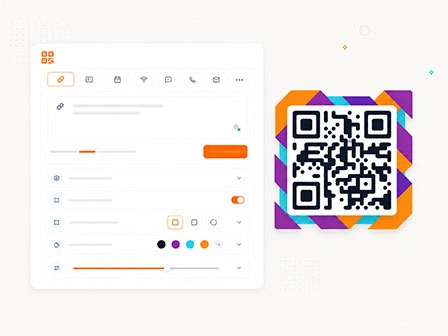
QRwize helps you create a static QR code for a website, menu, business card, packaging, event, Wi-Fi access, or payment details. Choose the QR code type, fill in the required fields, check the result, and download the finished file for digital or printed use.
How it works
Creating a QR code takes a few steps
Choose a format
Select what you need to encode: a link, text, contact, Wi-Fi, event, message, social profile, or payment details.
Fill in the required fields
The form shows fields based on the QR code type you choose. For a URL, enter the link; for Wi-Fi, the network name and password; for a vCard, the contact details; for an event, the date, time, and place; for a payment, the recipient details.
Check and download
Before using it, scan the QR code with a smartphone and make sure it opens the right action. After checking it, download the finished file and use it on a website, in a layout, presentation, menu, package, business card, or printed material.
Briefly about the service
One tool for different QR code tasks
QR codes are used in different situations: to open a website, connect a guest to Wi-Fi, save a contact, add an event to a calendar, write a message, open a social profile, or share payment details. Each case needs its own data structure, so a basic link field is not always enough.
In QRwize, these cases are collected in one interface. You choose the QR code type, fill in the relevant fields, and see which data will be encoded. This reduces the risk of mistakes before publishing or printing, especially when the code will be placed on materials that are hard to replace quickly.
Format selection
Which QR code to choose for your task
A static QR code can contain different data: a link, text, Wi-Fi access, a contact, an event, a message, a social profile, or payment details. To choose the right format, start with the action the person should take after scanning.
Open a website, menu, or document
Use this when the QR code should lead to a website, landing page, product page, online menu, PDF file, catalog, form, presentation, or instructions. It is the simplest option for printed materials, packaging, business cards, presentations, and website pages.
Connect a guest to Wi-Fi
A Wi-Fi QR code works for a cafe, office, hotel, coworking space, event, or home network. After scanning, the user gets the connection details without manually entering the network name and password.
Share a contact or event
For business cards, badges, resumes, and professional materials, use a vCard with contact details. For posters, invitations, conferences, and schedules, use the event format with a title, date, time, place, and description.
Prepare a message or call
Email, SMS, and phone QR codes are useful when you need to shorten the path to a request, inquiry, call, support message, or quick contact with a manager. After scanning, the user sees the prepared action.
Open a social network or messenger
A QR code can lead to Instagram, Telegram, WhatsApp, YouTube, LinkedIn, or another profile, channel, video, or chat. This is useful for menus, flyers, packaging, stickers, posters, and advertising materials where there is no room for long links or profile names.
Share payment or donation details
For payments, donations, and transfers, use the payment format. Before publishing, carefully check the details, amount, payment purpose, or wallet address, because after a static QR code is created, this data cannot be changed without creating a new code.
Use cases
Where QR codes can be used
Cafes, shops, and local services
Add a QR code to a menu, storefront, flyer, package, bill, or information sign. The code can lead to a website, online menu, Instagram profile, messenger, Wi-Fi access, contact, or payment details.
Events, education, and presentations
On posters, badges, slides, and handouts, QR codes help share a registration form, schedule, event materials, organizer contact, presentation link, or calendar event.
Marketing and printed materials
A QR code connects an offline material with a specific online action: open a landing page, view a catalog, watch a video, fill in a form, write in a messenger, or save a contact. This is useful for flyers, brochures, posters, labels, packaging, and advertising campaigns.
Business cards, portfolios, and personal tasks
Create a QR code for contacts, a resume, portfolio, LinkedIn profile, home Wi-Fi network, invitation, short message, or page with important information.
Static QR codes
What to know before creating a QR code
A static QR code stores data directly in the image itself. If you create a code for a link, Wi-Fi, contact, event, or payment, that data becomes part of the QR code after generation.
This format works well for information that should not change often: website addresses, menu pages, contacts, instructions, guest Wi-Fi, or fixed payment details. But after downloading and printing, the content of a static QR code cannot be edited.
If there is a mistake in the link, phone number, network name, Wi-Fi password, contact details, or payment data, you need to create a new QR code and replace the old one everywhere it is used. That is why it is worth scanning the code on a smartphone before publishing or printing, and checking the encoded data, contrast, size, and quiet zone around the code.
QR code design
Adapt the QR code appearance to your layout
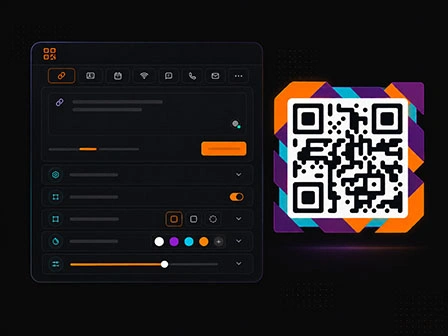
After creating a QR code, you can adapt its appearance to your layout: change the color, background, margin, dot style, and corner markers, add a frame, decorative shape, sticker, or ready-made logo.
This kind of styling is useful for a menu, business card, package, presentation, flyer, label, or website page. But after every significant design change, you should check the final QR code with a smartphone. Low contrast, too small a size, a complex background, or an oversized logo can make scanning worse.
Why QRwize
A QR generator without extra complexity
The service is built around a simple process: choose the QR code type you need, fill in the relevant fields, check the result, and download the finished file. You do not have to start with one generic empty field when the task needs a specific data format.
Clear type selection
Different scenarios use different fields: URL, Wi-Fi, vCard, event, email, SMS, social profile, or payment details. This helps you create a QR code for a specific action instead of assembling the data structure manually.
Check before use
A static QR code is hard to fix after printing, so it is important to check it before publishing. Before downloading, scan the code, make sure the data is correct, and only then use the file in a layout or print.
No account dependency after download
A static QR code stores the data in the image itself. After downloading, it does not need an account in the service, but if the link, contact, Wi-Fi password, or payment details change, you need to create a new code.
Practical formats for digital and printed use
The finished QR code can be saved in a format that fits your scenario: for a website, presentation, layout, print, or further design work.
Planned next
QRwize Pro: future options for dynamic QR codes
The service currently works as a static QR code generator. This format works well for stable information: links, contacts, Wi-Fi, events, or payment details that do not need to change after creation.
Marketing campaigns, printed materials, and team work often need broader options. In the Pro version, we plan to add tools for dynamic QR codes: editing the final link after printing, scan statistics, geography of visits, and QR project management in one account.
Leave your email if you want to receive a message about early access.